How to turn any property in your ParcelView3D account into a pitch-ready, interactive presentation — and hand it off to a buyer with a single QR code.
Land deals don’t always close at a kitchen table. They close in trucks, at gas stations, on a phone passed across a fence line, and in group chats with three decision-makers who’ve never seen the parcel. The hard part has always been the same: showing the property in a way that feels like the property.
Present Mode inside ParcelView3D solves that. It bundles your interactive map, concept renderings, AI visualizations, and walkthrough videos into one structured flow you can present live or hand off via QR code. No logins. No app install. No friction.
This tutorial walks through every step — from opening Present Mode on a property to sharing it with a buyer in under a minute.
What Present Mode Actually Does
Before the steps, here’s what you’re working with. Present Mode is a presentation layer that sits on top of any property in your ParcelView3D dashboard. In one clean interface, it gives you:
- Instant access to your interactive ParcelView3D map of the parcel
- Concept images and AI-generated visualizations of how the land could be developed
- Embedded videos and aerial walkthroughs
- A structured, swipeable flow so nothing feels improvised
- A shareable QR code that opens the full experience on any device — no account required
The result: every buyer sees the same polished pitch, whether you’re standing next to them or texting them from across the country.
Step 1: Open the Property You Want to Pitch
Log into your ParcelView3D account and navigate to the property you plan to present. This can be a parcel you’ve already loaded into your account, an active listing on your marketplace, or a deal still in due diligence.
- From the main dashboard, click Properties in the left sidebar.
- Use the search bar or scroll to locate the parcel by APN, owner name, or county.
- Click the property tile to open its full detail view.
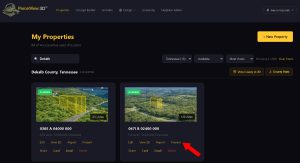
If the Present button isn’t available on the property, you’ll need to create the card first. Present Mode pulls directly from the property card, so it has to exist before you can launch.
Step 2: Launch Present Mode
With the property open, find the Present Mode button in the top action bar. It sits alongside Edit, Share, and Report. One click is all it takes.
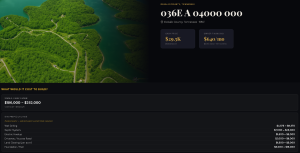
Present Mode opens in a full-screen, distraction-free layout. Browser chrome, sidebars, and admin controls disappear so the buyer sees only the property — removing every reason for their attention to wander.
Step 3: Walk Through the Flow
Present Mode is organized into a sequence of sections. You can move forward and backward with arrow keys, swipe gestures on tablet, or the navigation dots at the bottom. The default order is built for how buyers actually make decisions:
- Cover — property name, location, acreage, and headline price.
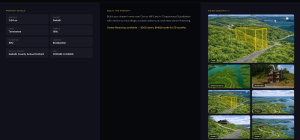
- Map View — the interactive ParcelView3D viewer with full pan, tilt, and zoom controls.
- Concept Visualizations — AI-generated renderings showing what a cabin, ADU, or homestead could look like on the lot.
- Video Walkthrough — drone footage or AI-generated flyovers if you’ve added them.
- Details — zoning, road access, utilities, terms (especially important for owner-financed deals).
- Next Steps — your contact info and a call-to-action.
Every section is optional. If a property doesn’t have concept images yet, that slide simply doesn’t appear. You’re never showing a half-baked pitch.
Step 4: Generate the QR Code for Remote Buyers
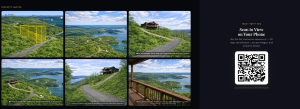
This is where Present Mode earns its keep. While inside Present Mode, click the QR icon in the bottom-right corner of the screen. A modal pops up with a scannable QR code and a short shareable link.
Buyers can scan the QR with any phone camera and the full presentation opens in their browser — no app, no account, no friction. The link works on iPhone, Android, tablets, and desktops. Internally, the share link is tokenized, so you can revoke access if a deal falls through or share a different version with a different lead.
- Inside Present Mode, click the QR icon (bottom-right corner).
- Choose whether to share the live (auto-updating) version or a snapshot frozen at today’s date.
- Click Copy Link to send via text, or Download QR to print on a yard sign or business card.
- Optional: enable lead capture so anyone who opens the link gets logged with timestamp and device.
Step 5: Use It in the Field
A few patterns that work especially well in practice:
- Yard signs and lockboxes — print the QR on the sign so anyone driving by can pull up the full pitch in seconds.
- Text follow-ups — when a Facebook Marketplace lead asks ‘tell me more,’ send the link instead of typing paragraphs.
- Group decisions — buyers often need to show a spouse or partner before committing. The QR link gives them something polished to forward.
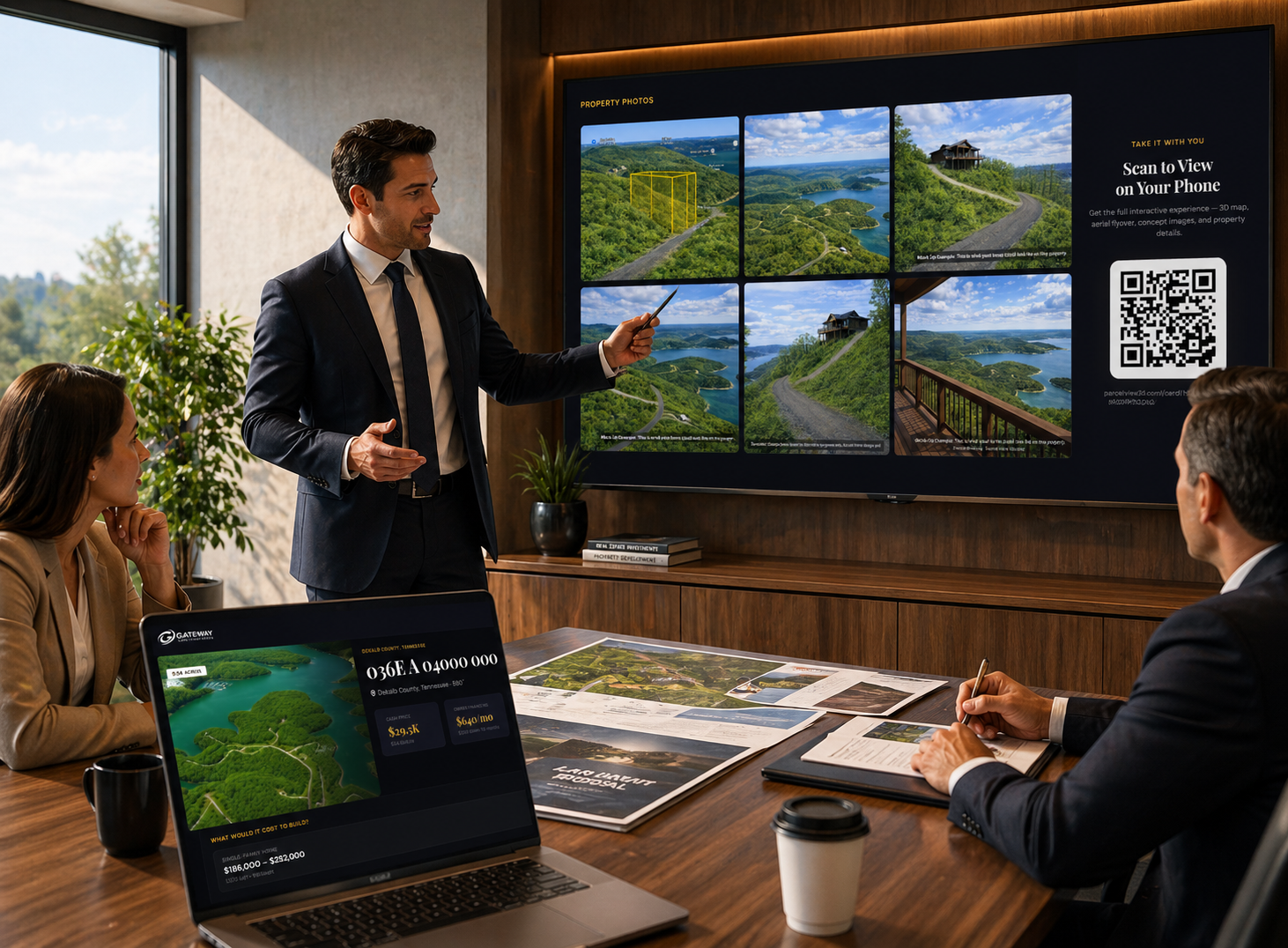
- In-person showings — open Present Mode on a tablet and hand it across the truck cab, or display it on a TV at the closing table.
Because the same presentation is used live and remotely, every buyer gets a consistent experience. That consistency is what turns scattered interest into closed deals.
Why This Matters for Owner-Financed Land Sellers
Owner-financed land buyers tend to make decisions emotionally — they’re imagining a life on the property, not running a cap-rate spreadsheet. Anything that helps them visualize that life shortens the sales cycle. A flat map shows them lines on paper. A ParcelView3D presentation with concept renderings shows them where the cabin goes and where the road comes in.
Present Mode bundles that into something you can deploy in 60 seconds, on any device. The QR code removes the last layer of friction — and friction, more than price, is usually what kills land deals.
Ready to try it? Start your FREE trial today and see how ParcelView 3D helps you sell properties better.